Convert HEIC to JPG Easily on Your Computer
Moving photos from an iPhone to your PC or Mac is one of the most common everyday tasks. But running into dozens of `.heic` files you can't open in your usual editing software, a web form, or a Windows machine can be genuinely frustrating. In this complete tutorial, you'll learn every available method to convert HEIC to JPG on your computer without losing quality or putting your privacy at risk.
1. Why Does This Incompatibility Happen?
Since iOS 11, Apple sets all its devices to capture photos in the HEIF (*High Efficiency Image Format*) format, packaged with the `.heic` extension. While this format is excellent for saving space on the phone's internal storage, Windows and most browsers or web platforms don't include native support for it by default.
For that reason, converting your photos to JPG becomes an essential step whenever you need to attach documents on a job portal, upload products to an e-commerce store like Shopify, or edit photos in traditional software.
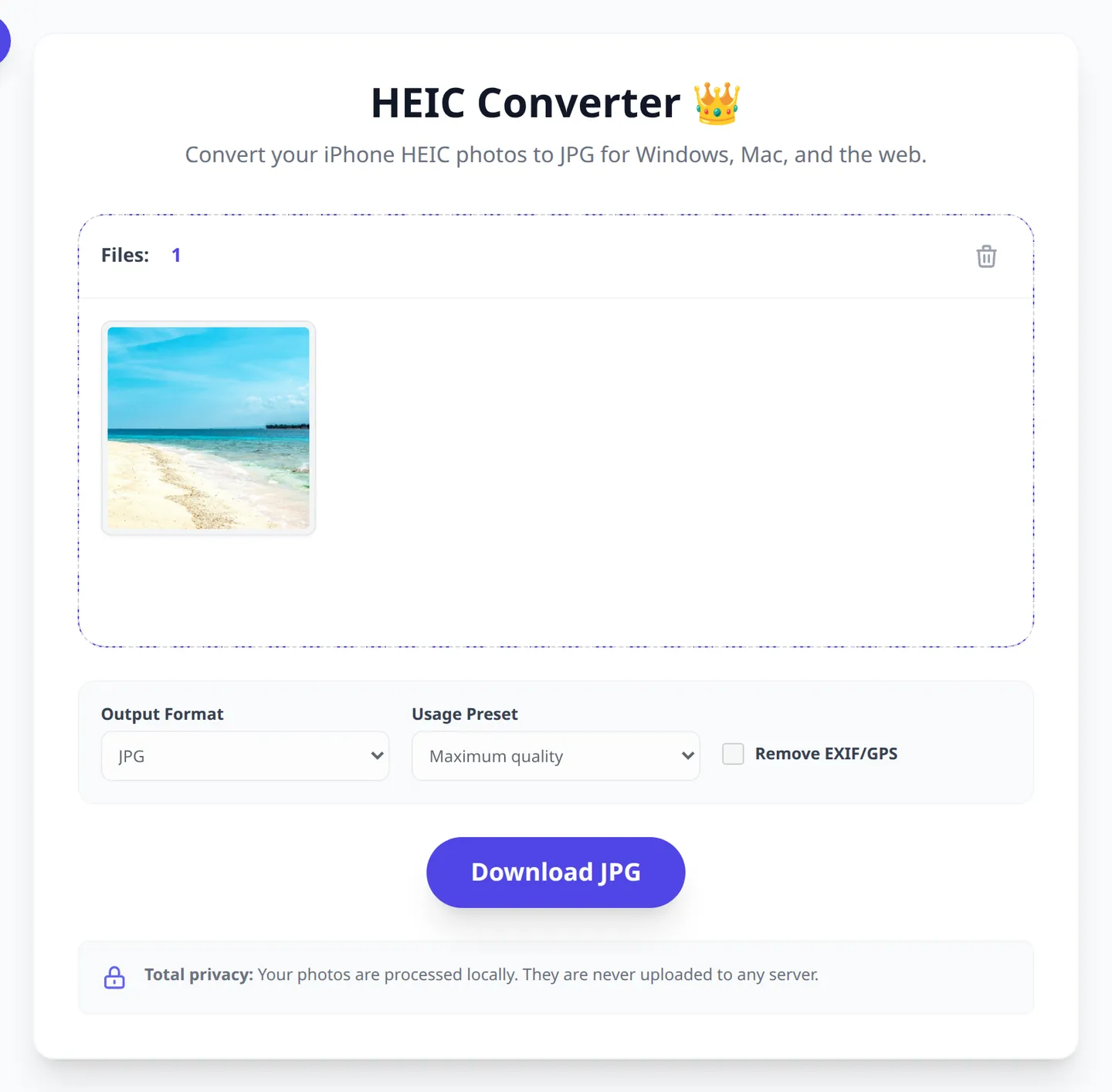
2. Recommended Method: Private In-Browser Conversion With OmniPixy
The fastest, safest, and most universal way to convert your photos (on Windows, Mac, or Linux) is to use OmniPixy's HEIC Converter.
Unlike other online converters that upload your photos to unknown external servers, OmniPixy does all the processing 100% locally in your own device's memory using WebAssembly and the Canvas API. No image ever leaves your device.
Convert Your HEIC Files in Bulk, Free
Drag your iPhone photos and download them as JPG or WebP instantly, with the guarantee of full privacy.
Go to OmniPixy's HEIC ConverterThere is also a dedicated page: heic → jpg.
3. Step-by-Step: Converting a Batch of Images in OmniPixy
- Open the HEIC Converter in your browser.
- Drag all your `.heic` files or entire folders into the drop zone.
- Choose the output format you want (JPG, PNG, or WebP) and adjust the quality slider.
- Click Convert All and download the files individually or as a single, organized ZIP package.
4. Alternative Methods on Mac and Windows
On macOS (MacBook / iMac)
You can select the photos in Finder, open the native *Preview* app, choose File > Export..., and change the output format to JPEG. You can also build a quick workflow with the *Automator* app.
On Windows 10 / Windows 11
Microsoft offers the official "HEVC Video Extensions" add-on in the Microsoft Store (paid in some cases). That said, to avoid complicated installs or software bundled with aggressive ads, using OmniPixy's browser-based suite is much more practical and direct.
5. Preventive Settings on Your iPhone
If you'd rather have your iPhone automatically convert photos to JPG whenever you connect it to a computer via USB cable, follow these steps:
- Go to Settings on your iPhone.
- Scroll down to the Photos section.
- Near the bottom, find the Transfer to Mac or PC block.
- Select Automatic instead of "Keep Originals."
Conclusion
Converting HEIC files to JPG doesn't have to be a slow or risky process for your private photos. Using OmniPixy's built-in suite lets you transform entire batches of photos in seconds with full sharpness and local security.
A Detailed Guide to Performance and User Experience
Web performance in 2026 is one of the most decisive pillars for the success of any digital strategy. When a user opens a page on a mobile device or a connection with limited coverage, every millisecond of delay in downloading media assets exponentially increases the chance they'll leave. Optimizing images isn't just about saving server space — it's about delivering a smooth, instant experience to every visitor.
Local processing through browser-based tools like the OmniPixy suite makes a fundamental difference compared to traditional platforms. By running all compression, conversion, and resizing algorithms 100% natively on your device via WebAssembly and modern JavaScript, your confidential photos and documents are never transmitted to third-party servers, keeping you in full control of your privacy.
Core Principles for Visual Optimization
- Exact dimension matching: Always export the image at the maximum resolution the on-screen container will actually need. Avoid uploading 4000-pixel photos for an 800-pixel space.
- Strategic format selection: Use WebP and AVIF for everyday web design thanks to their superior compression, and reserve JPG for guaranteeing compatibility with older tools or physical printing.
- Accessibility metadata: Write clear, contextual alt text to improve search engine rankings and ensure accessibility for screen-reader users.
- Standard color profile preservation: Confirm your files use the sRGB color space to prevent visual tones from shifting when displayed on different monitors or mobile screens.
Frequently Asked Questions (FAQ)
Does converting delete the original HEIC?
No. The converter reads the file and gives you a new JPG to download; the HEIC stays where it was on your disk. Keep it as the master copy if you may need the full quality or the HDR data later.
Do I need the HEIF extensions on Windows?
Not if you convert in the browser: the file is decoded on your machine and comes out as JPG, so Windows never has to recognise the HEIC. The extensions are only needed for thumbnails in File Explorer.
What happens to the date and GPS when converting?
It depends on the tool. If you need to keep the metadata, check the result with an EXIF viewer before deleting the original; and if the photo is going public, take the chance to strip the location.
W3C Standards and the Future of Digital Imagery
With the rapid evolution of OLED mobile screens and high-resolution 4K/8K monitors, the standards defined by the W3C consortium for web graphics increasingly emphasize adaptive visual experiences. Adopting optimized workflows through OmniPixy's local tool suite ensures your website strictly meets the accessibility, internationalization, and response-speed recommendations demanded by leading search engines.
If instead of HEIC photos you need to convert documents, try our guide to converting PDF to JPG and PNG.