Batch processing hundreds of images: the complete workflow
You have 300 photos from an event, a client or a catalogue, and they all need the same treatment: resize, compress and rename in order. Doing it one by one costs you an afternoon. Uploading them to an online service is a problem if they are client photos. Here is the batch workflow that runs in your browser.
1. When batch processing is worth it
Batch processing is not for everything. It works when the treatment is identical for every image and when the number is high. If it is five photos and each needs a different crop, do it by hand: you will be faster.
It is worth it in these cases: an event with hundreds of photos headed for the web, a product catalogue with the same technical spec, client photos that have to be delivered under a maximum size, or images that need sequential renaming so the order does not break.
2. The problem with uploading your photos
Most batch tools are web services: you upload the photos, they process on their server and send them back. For photos from a public event that is fine. For client photos, photos of minors or unreleased product, it is a real problem: you are handing originals to a third party.
Local processing in the browser avoids that. The image is read on your machine, processed with your CPU and downloaded from your machine. There is no upload. The trade-off is that your computer sets the limit, not their server: with 300 twelve-megapixel photos the browser will work hard, so do not keep twenty other tabs open.
3. The correct order of the workflow
Order matters more than it seems. If you compress before resizing, you compress pixels you are about to throw away. The order that works:
- Select the whole batch at once.
- Resize to the final size you need.
- Compress at the chosen quality.
- Rename sequentially.
- Download everything as a ZIP.
Resizing first has another advantage: compression is much faster on smaller images, so the whole batch finishes sooner.
4. Resizing without distortion
The classic mistake is forcing a fixed width and height. If the original photo does not have that ratio, the image comes out stretched or squashed. The rule is to set the longest side and let the other one follow, keeping the ratio.
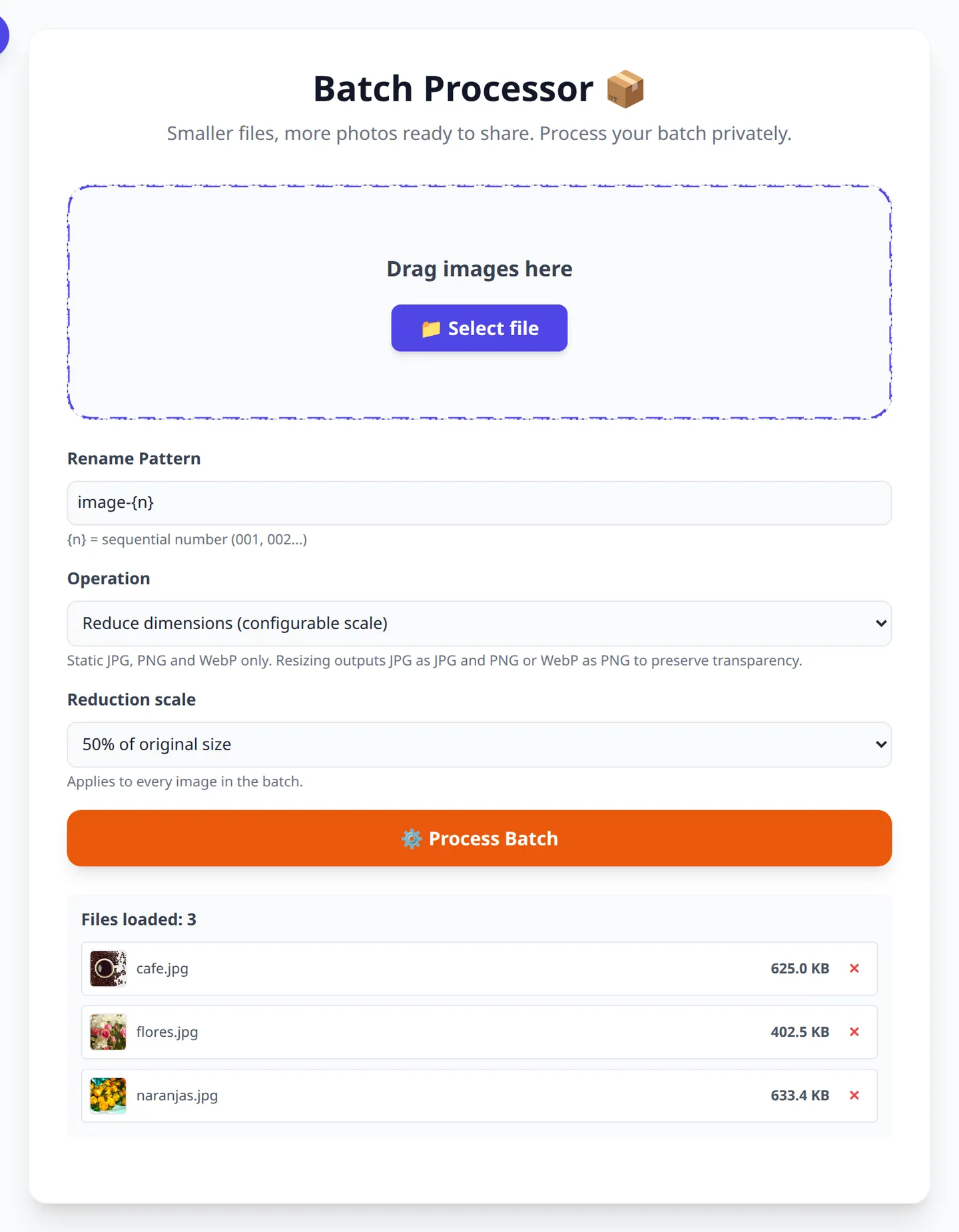
For a batch with mixed orientations, vertical and horizontal, setting the longest side is the right call: every photo ends up with the same maximum resolution and none is distorted. In OmniPixy's batch processor you can pick a scale percentage or a size, and the result keeps the original ratio.
5. Renaming in order
Sequential renaming looks like a detail and is not. Hand over 300 photos named IMG_4821.JPG and the client cannot sort them or tell which is first. With a prefix and a number they can: event-001.jpg, event-002.jpg.
Zero padding is not cosmetic: without it, systems sort alphabetically and photo 10 appears before photo 2. With three digits the order is correct up to 999.
6. How long it takes and what to expect
Time depends on three things: the number of photos, their original resolution and your machine's power. As a reference, a batch of 100 twelve-megapixel photos resized to 50% and compressed usually takes one to three minutes on a recent laptop.
Two things help: close heavy tabs before starting, and do not switch tabs during the process if the browser is struggling. The process runs on the main thread in many tools, so switching tabs can slow it down.
Process your batch now
Resize, compress and rename hundreds of photos in the browser. No signup, nothing uploaded.
Open the batch processorFrequently Asked Questions (FAQ)
How many photos can I process at once?
It depends on your machine and the original resolution. Batches of 100 to 300 photos are manageable on a recent laptop. With thousands, split them into rounds.
Are the photos uploaded to a server?
No. OmniPixy's batch processing runs in your browser: the images never leave your computer.
Should I resize or compress first?
Resize first and compress after. If you compress first you waste time compressing pixels you are about to discard.
How do I avoid distorted photos?
Set the longest side and let the other follow, keeping the ratio. Do not force a fixed width and height.
Why does renaming use leading zeros?
So the order is correct. Without zeros, systems sort alphabetically and photo 10 appears before photo 2.
Conclusion
The batch is solved with the right order: resize, compress, rename and download. And it is solved in your browser, so client photos never pass through anyone's server. Your machine sets the limit, not a quota.